
Worklist Insights is a powerful analytics feature available exclusively to users on Paid Subscription. As the name suggests, it provides a crucial bird’s-eye view of all allocated tasks within a Worklist, giving managers and team leaders immediate clarity on project health and individual workloads.
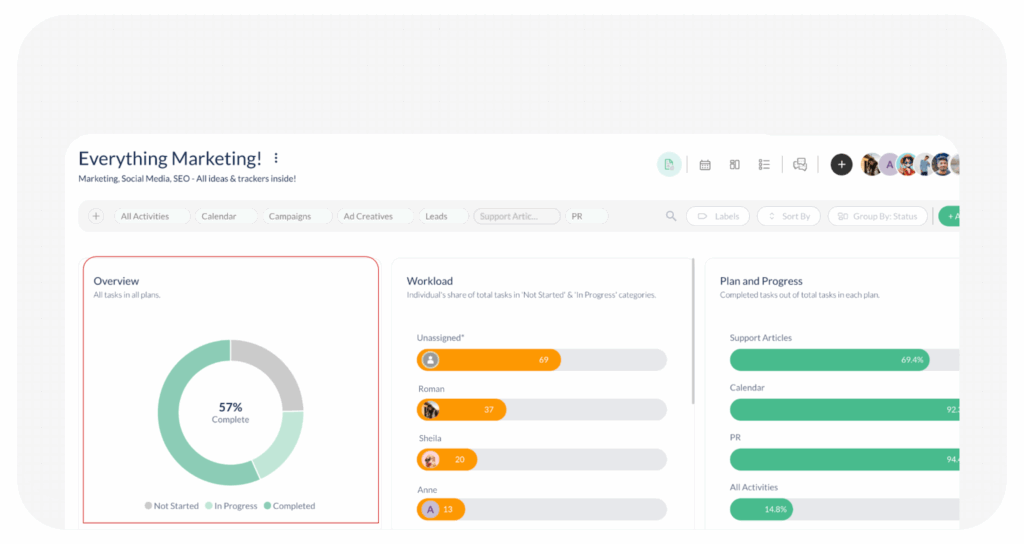
When you click on ‘Worklist Insights’, the default page that appears is segmented into three key areas: Overview, Workload, and Plan and Progress.
1. Overview
The Overview provides a high-level summary of the entire Worklist’s status (All tasks in All Plans):
- Task Segmentation: It shows the total number of tasks segregated into the three primary status categories: Not Started, In Progress, and Completed.
- Visual Status: These statuses are displayed using different visible colours, allowing for instant recognition of project health.
- Completion Percentage: The completion percentage at the centre of the circular chart indicates the overall progress across all tasks.
- Count Detail: When you hover your mouse over each coloured segment, the exact count of tasks in that status is displayed.
2. Workload
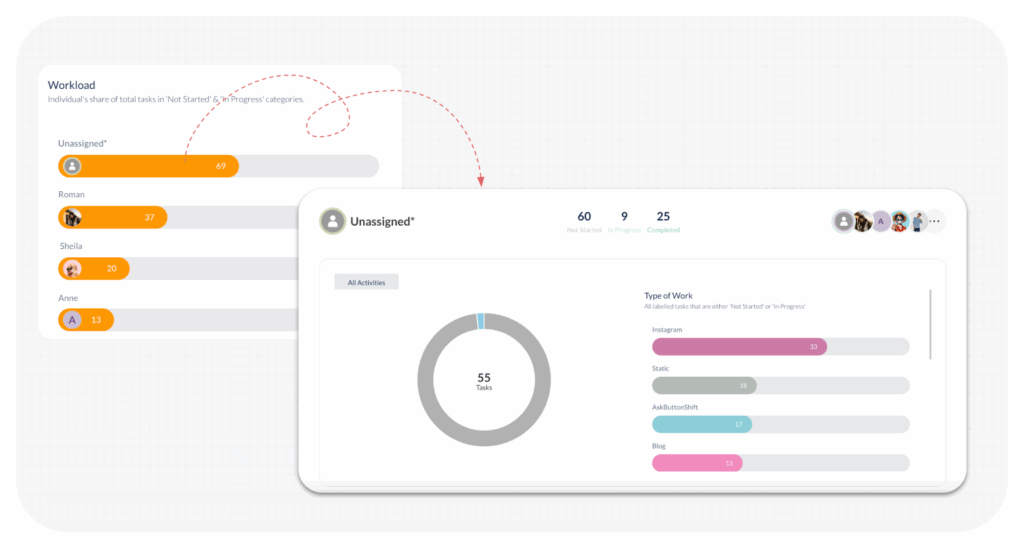
The Workload section shifts the focus from task status to team member capacity:
- Individual Share: It shows each individual member’s share of the total active tasks, specifically in the ‘Not Started‘ and ‘In Progress‘ categories. Hover over the member name to see the Pending count vs. Assigned count, and the count of Pending tasks (Not Started, and In Progress)
- Drill-Down Detail: You can drill down further by clicking on any assigned member to get detailed insights on their activity across all plans within the Worklist.
- Member Summary: The member’s total tasks in Not Started, In Progress, and Completed are clearly displayed.
- Type of Work: Towards the bottom, against each plan, the system displays the Type of Work. This includes all labelled tasks that are currently either ‘Not Started‘ or ‘In Progress‘. Hovering over these labels reveals the exact count of tasks per label.
- Team Navigation: From this detailed view, you can easily click on any other member’s name to instantly view their similar workload details.
3. Plan and Progress
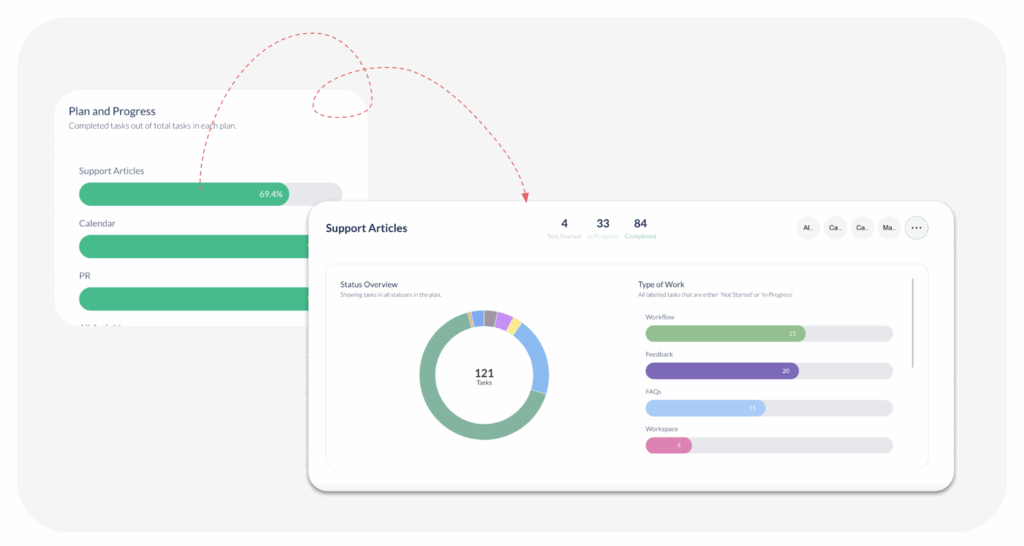
The Plan and Progress section provides a deep dive into the status of each individual project plan within the Worklist:
- Plan Completion: It shows the Percentage of Completed tasks. Hover over the plan name to see the count of Completed vs Total tasks within each individual plan in the Worklist.
- Detailed Plan Insights: You can go into more detailed insights of any plan by clicking on it.
- Plan Summary: The plan’s total tasks are displayed across Not Started, In Progress, and Completed statuses.
- Status Overview: At the bottom, a Status Overview shows tasks in all statuses within that plan.
- Type of Work: Towards the right-hand side, the Type of Work is displayed (all labelled tasks in ‘Not Started‘ or ‘In Progress‘ statuses). Hovering over these labels reveals the task count.
- Plan Navigation: From this view, you can click on any other plan to instantly view its corresponding detailed metrics.
Last modified: January 10, 2026
