
Removing a member is a critical action that revokes their access to all associated content. When you remove a member at the workspace level, you are simultaneously removing them from all Spaces, Collections, Boards, Files, and Worklists they were participating in.
Step-by-Step Guide to Removing Workspace Access
Follow these steps to permanently remove a member’s access from your workspace:
- Access Members Panel: Expand the dashboard on the right side of your screen and click on Members. This panel lists all users (Manager, Admin, Regular, and External) currently active on your workspace.
- Select Member to Remove: Locate the member you wish to remove. On the right side of their username, click the 3 vertical dots.
- If you are unsure about removing the member, you first click on the ‘Get Info’ option to see their access across Spaces, Collections, Boards, Files and Worklists.
- Go to Step 3 if you decide to remove the selected member.
- Initiate Removal: Select Remove member from the dropdown menu.
- Confirm the Action: A confirmation pop-up will appear, detailing the consequences of your action:
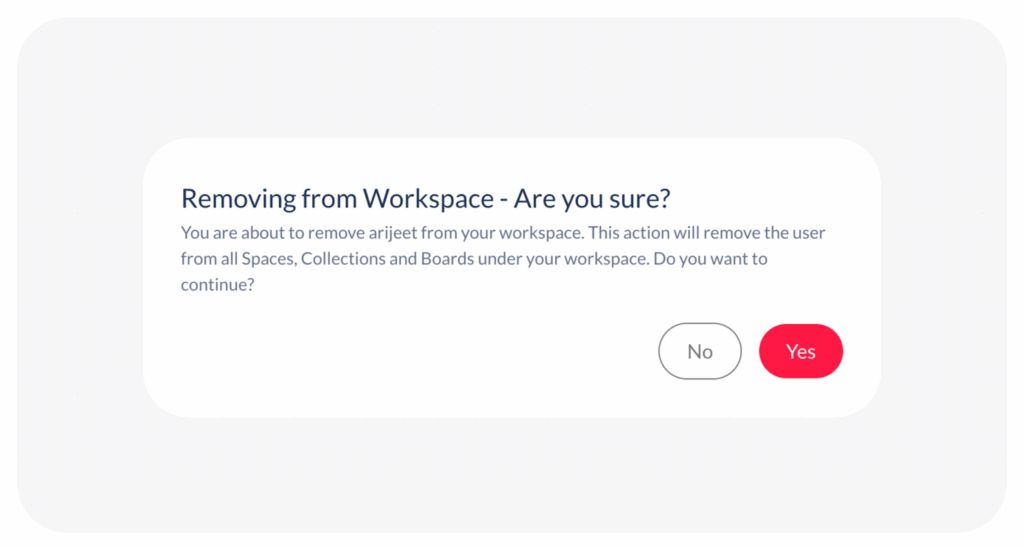
- Finalize Removal: Click Yes to confirm the action, which will immediately remove the member and revoke their access to all content.
Visited 54 times, 1 visit(s) today
Was this article helpful?
YesNo
Last modified: December 17, 2025
