
You can export time-coded feedback directly into your editing timeline, eliminating the need to toggle between screens.
Step 1: Open the file in ButtonShift, locate & click the Export Feedback icon located at the top right of the feedback panel, and download one of the below formats:
- .edl (Edit Decision List – Best for DaVinci Resolve)
- .xml (Extensible Markup Language – Best for Adobe Premiere Pro)
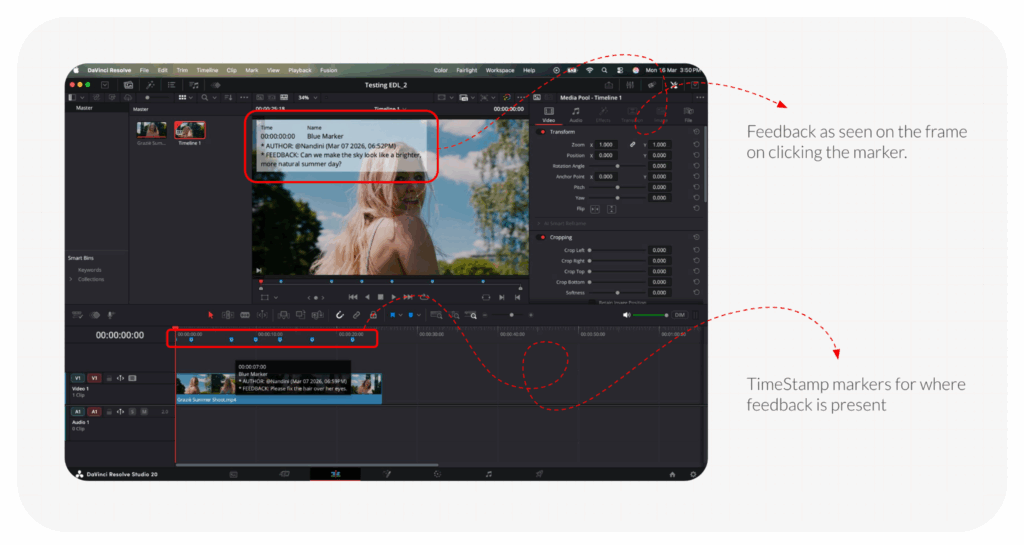
Step 2: Importing to your Professional Editing Application
For DaVinci Resolve (.edl)
- Download the .edl file from ButtonShift.
- Open your original project timeline in DaVinci Resolve.
- Right-click on your timeline in the media pool or timeline area.
- Select Timelines > Import > Timeline Markers from EDL.
- All feedback points will now appear as markers on your timeline at the exact frame they were placed in ButtonShift.
For Adobe Premiere Pro (.xml)
- Download the .xml file from ButtonShift.
- In Premiere Pro, go to File > Import and select the downloaded XML.
- The feedback will appear as a new sequence or markers, allowing you to see specific instructions (e.g., “Cut here,” “Change color”) precisely where they were requested.
Pro-Tip: Once you have completed the edits based on the imported markers, upload the new version to the same file stack in ButtonShift using Version Stacking to keep the “Source of Truth” intact.
Visited 87 times, 1 visit(s) today
Was this article helpful?
YesNo
Last modified: May 18, 2026
