
Adding members to a Worklist is essential for delegating tasks and tracking progress collaboratively. ButtonShift provides two convenient ways to add team members: during the initial creation or at any time afterward.
Option 1: Adding Members During Worklist Creation
- Name the Worklist: Begin the process of creating a new Worklist by giving it a name.
- Locate Member Field: Find the ‘Add a new or existing members’ section.
- Input Details and Access: As you add members, choose whether they should have Limited or Full access permissions.
- For new members, type the full email ID of the person you want to invite.
- For existing members already in your workspace, begin typing their user details (username or email ID) to select them from the list.
- Finalize Creation: Complete the creation of the Worklist by clicking Create.
Option 2: Adding Members to an Existing Worklist
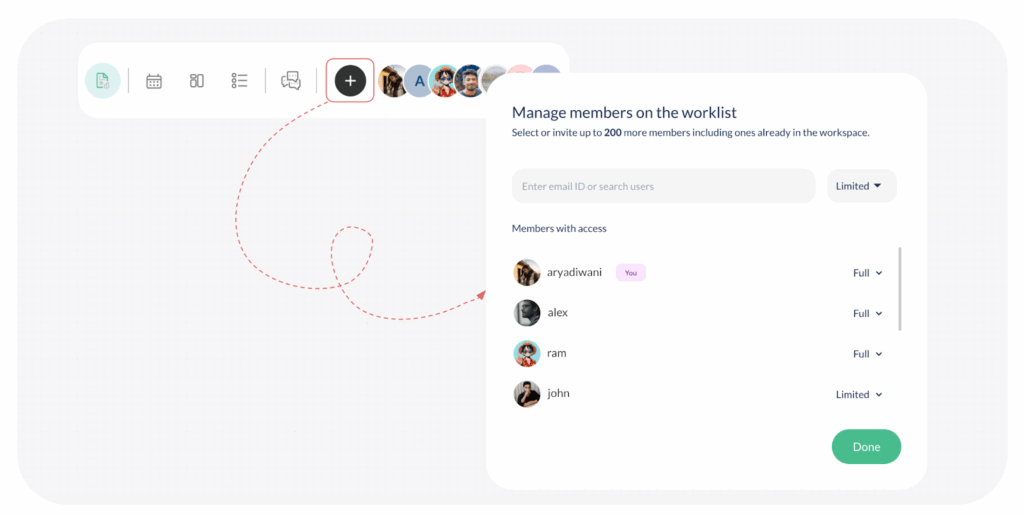
You can manage and add new members to an active Worklist at any time:
- Open your worklist: Navigate to the Worklist section of your workspace, and select the specific worklist.
- Manage members: In the top-right corner of the screen, click the + button. A pop-up titled ‘Manage members on the worklist’ will appear, showing all current members and their access levels. You can add members up to the seat count you have subscribed for, including the already existing ones in your workspace.
- Add new members: Enter the desired member’s email ID, and select their access level
- Complete the process: Once you have finished adding all desired members, click Done.
Worklist Access Levels
When adding members, you will assign one of the following two access levels:
- Limited access: Users can create, update, and delete tasks that they create.
- Full access: Users can create, plan, add, and remove members. They can create, update and delete any task in the worklist.
The new members will receive access to the worklist based on the permissions you have set for them.
Visited 21 times, 1 visit(s) today
Was this article helpful?
YesNo
Last modified: October 13, 2025
