
ButtonShift simplifies the process of getting feedback from an approver. You can send individual files or entire project boards for review, ensuring everyone has the context they need to provide clear and actionable feedback.
Initiate the Review Process
After you have uploaded the files into a board or elsewhere in the workspace, follow these steps to send your work for review. You can initiate the review process on a standalone file or multiple files – below are all options for initiating the review process.
For Standalone Files: Located anywhere in the workspace but not inside a Board.
- Locate and open the file you wish to be sent for review
- Click on the Submit File which will open the ‘Request Review’ pop-up.
For Boards: All files present inside a Board
- Upload all files to the Board,
- Click the Submit Board button. This will open a ‘Request Review’ pop-up.
Single file in a Board:
- Open the file from the board you wish to send for review
- Click on Submit File. This will open a ‘Request Review’ pop-up.
Multiple files in a Board:
- Hover over the file you wish to send for review;
- Select the file by clicking on the radio button on top left of the file card.
- Continue selecting other files that you wish to send for review by clicking the radio button.
- When done, click on Submit Files. This will open a ‘Request Review’ pop-up.
Requesting the Review
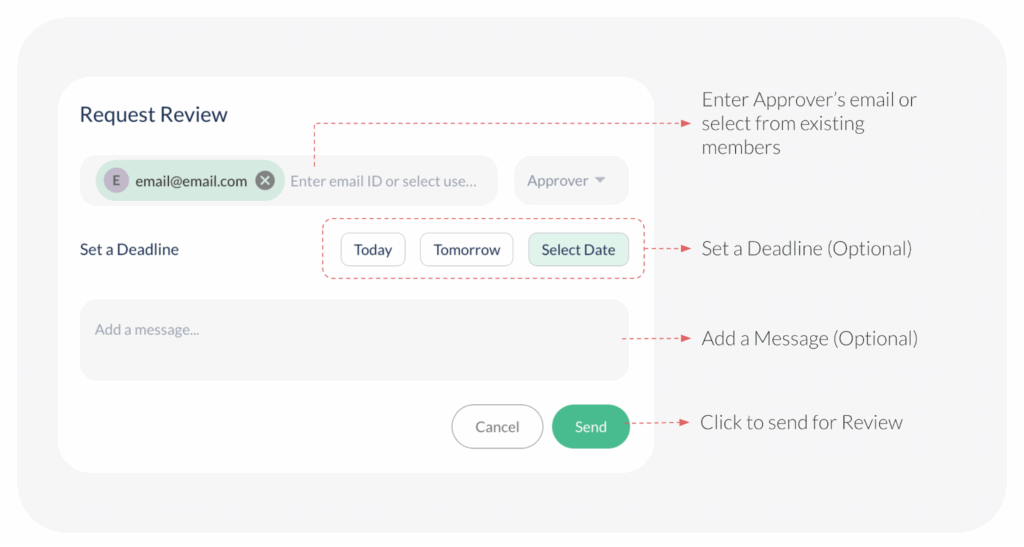
A pop-up appears in each of the above steps wherein you can add reviewers and set a deadline.
- Add Approvers: Begin typing the email address of the person who will review the content, or select their name from the dropdown.
- Add a message (optional): Enter a message to provide additional context.
- Set a deadline (optional): Click on Select Date to open the calendar view to set a deadline for the review.
- Send the request: Once all the details are confirmed, click Send.
What Happens Next?
The reviewers you’ve selected will be notified and will be able to view the file or board and begin adding their feedback. They can also see the upcoming task in their Action Center, if you’ve set a deadline.
Last modified: November 10, 2025
