
Adding an annotation to a video is the most precise way to give feedback. This feature on ButtonShift allows you to pinpoint a specific area of the video frame, directly linking your feedback to a particular detail.
Adding an Annotation
When you have opened the desired video file and are ready to provide feedback, simply follow these steps:
- Pause the video: Play and pause the video at the exact moment you want to comment on.
- Select the area: Click directly on the video frame and mark the specific area with the help of the mouse you want to highlight . A feedback box will appear.
- Add your comment: Type your comment, question, or suggestion into the feedback box. Your feedback is automatically linked to the annotation and the timestamp.
- Click Add: Once you’re finished, click ‘Add‘ to save your feedback.
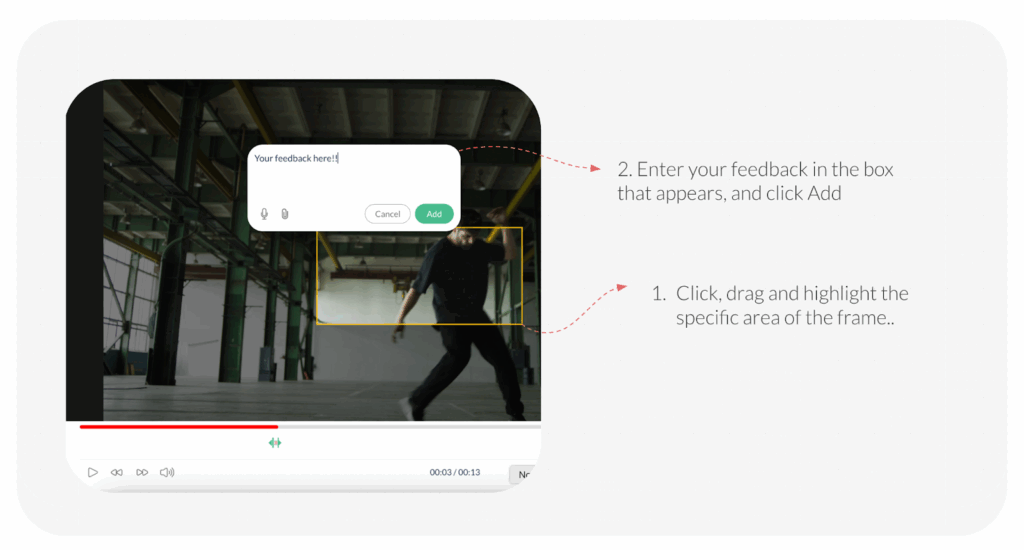
This feature ensures that your feedback is not only clear but also visually precise, helping everyone associated with the project understand exactly what you’re referring to.
Watch this video on adding feedback
Also read: How do I add feedback on a Video?
Visited 16 times, 1 visit(s) today
Was this article helpful?
YesNo
Last modified: November 13, 2025
