
If you are unable to upload a new version of a file in ButtonShift, it is usually due to one of two main factors: your role in the file/board or the current status of it in the workflow.
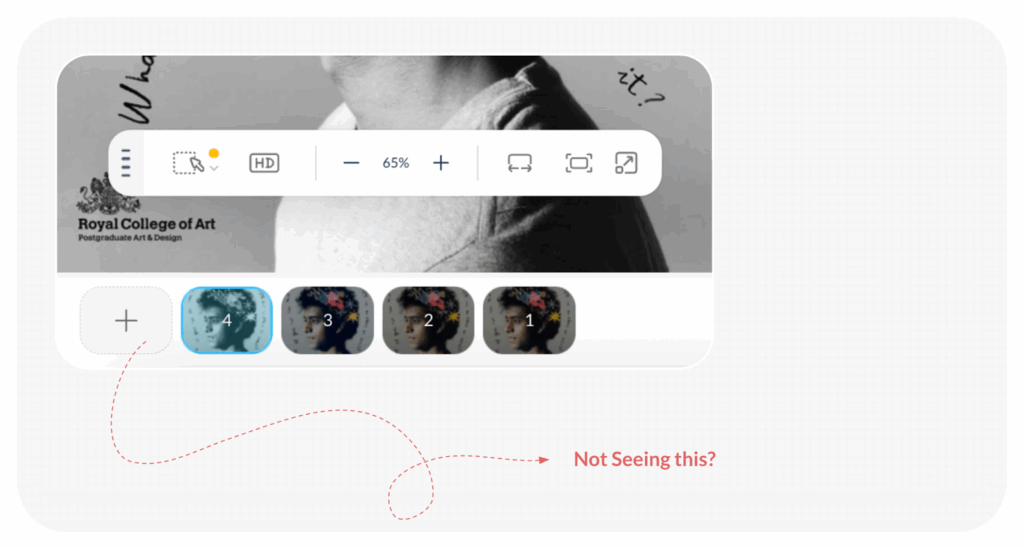
1. Check Your Role
To ensure proper version control, only specific roles have the ability to upload new file versions:
- You must have the role of Creator, or Collaborator for the file/board in mention to be able to add a version. If you are operating under a different role, you will need to ask a person with one of these roles to upload the revision for you.
2. Check File/Board Status
Even with the correct role, the file must be at the correct stage in the review process:
- The most common reason for being unable to add a version is that the file is not currently in the Revision stage.
- As a Creator, you can only add versions when the file’s status is In Revision.
How to Fix This:
- Check the file’s status. If it is not marked as In Revision, ask the relevant approver (the person who reviewed the file) to move it to the In Revision status by clicking on “Revise File” or “Revise Board”.
- Once the status changes to In Revision, you should be able to upload a new version/s for a file or board without any issues.
If you have confirmed that you have the necessary role and the file is in the correct status, but the problem persists, try refreshing the page or contacting support for further assistance.
Visited 12 times, 1 visit(s) today
Was this article helpful?
YesNo
Last modified: December 16, 2025
