
The ability to automatically create a new file version simply by dragging and dropping the revised file is an exclusive feature available only when working within a Board workflow. This method provides the Creator with the fastest way to replace old files with new revisions.
The Auto-Versioning Scenario
The system intelligently recognizes when you are attempting to upload a file that already exists on the Board, especially when the Board status indicates revisions are needed.
- Initial Submission: You have files (e.g., 1.jpg and 2.jpg from Folder-X) uploaded onto your Board and have submitted the file for review.
- Revision Cycle: The Approver has reviewed the files, provided feedback, and sent the Board back for revision (e.g., status is In Revision).
- Uploading the Revised Content: You, as the Creator, work on the changes, save the updated files with the exact same names and file types (e.g., the new 1.jpg and 2.jpg from Folder-Y), and drag and drop these revised files back onto the Board.
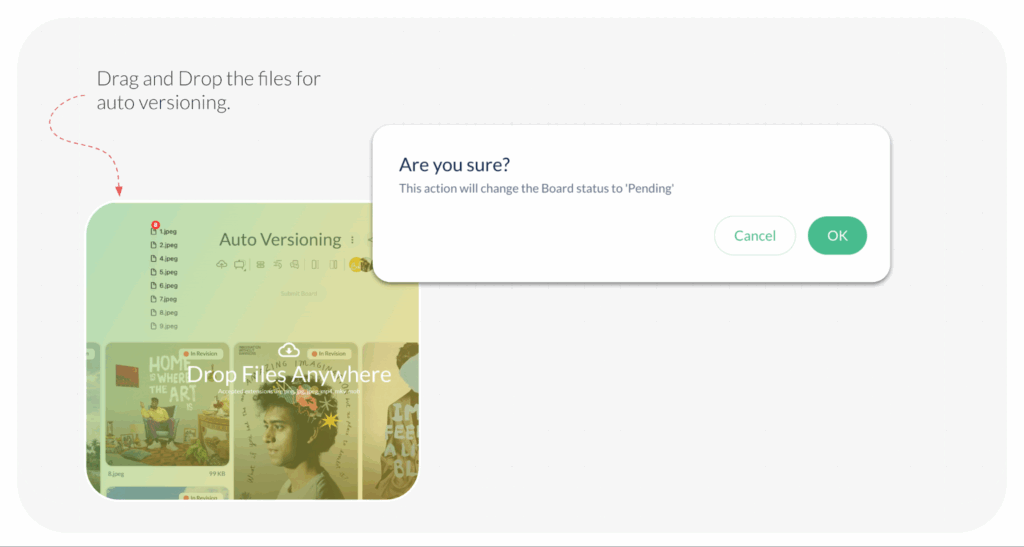
The Step-by-Step Prompts
The application guides you through the process, ensuring you confirm the creation of new versions:
- Status Change Warning: The system first alerts you that this action will change the Board’s status:
‘Are you sure? This action will change the Board status to Pending.‘ Click Ok. (This updates the status to signal that new content is being worked on.) - Version Confirmation: The application recognizes the file name match and prompts you to confirm versioning:
‘Are you adding versions? We found files with the same name. Please select what you want to do.‘ Ensure the auto-selection option ‘Add a Version‘ is selected, and click Upload.
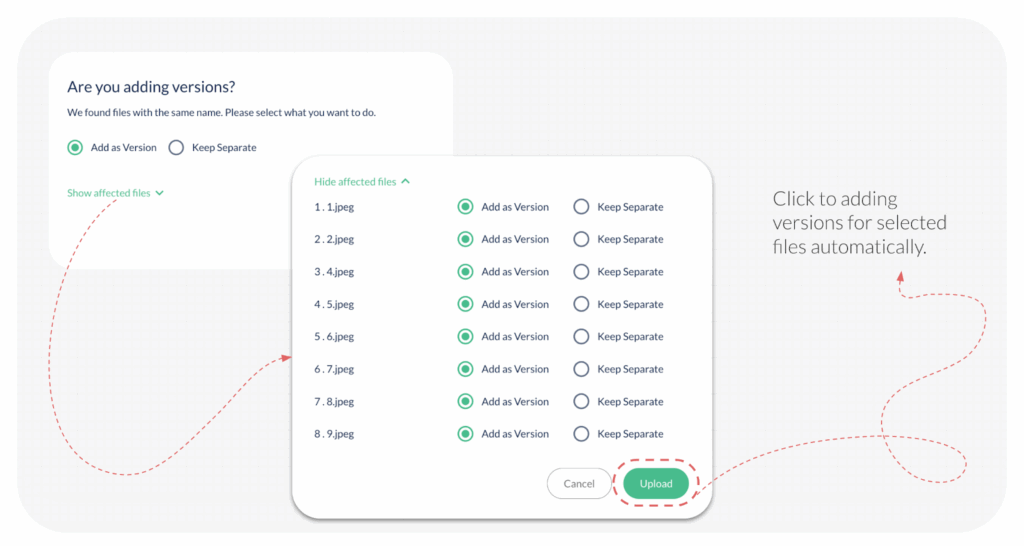
The Result
The new files are successfully uploaded, and the application auto-creates a new version for each matching file:
- The older file is now listed as v1.
- The newly uploaded file is set as v2 and labelled as ‘Current Version‘.
When you next Submit File, both you and the Approver will see the new v2 as the active file that requires attention. This foresight of saving the file with the same name allows the application to streamline the entire revision process.
Read this related Article:What is a file version and how to add one?
Last modified: November 10, 2025
