
Approving a file or board is the final step in the review process. When you approve content, you’re confirming that it’s final and ready for its intended use, making the original output available for download.
Note on Permissions: You can perform the Approve action only if you are explicitly added to the file or board as an Approver. Even if you are an Admin or Owner, you will need to have yourself assigned as an Approver to complete the action.
Approving a File
A file goes through a cycle of review and revision before it can be approved.
- Open the file you wish to approve. It must be in the ‘In Review‘ status.
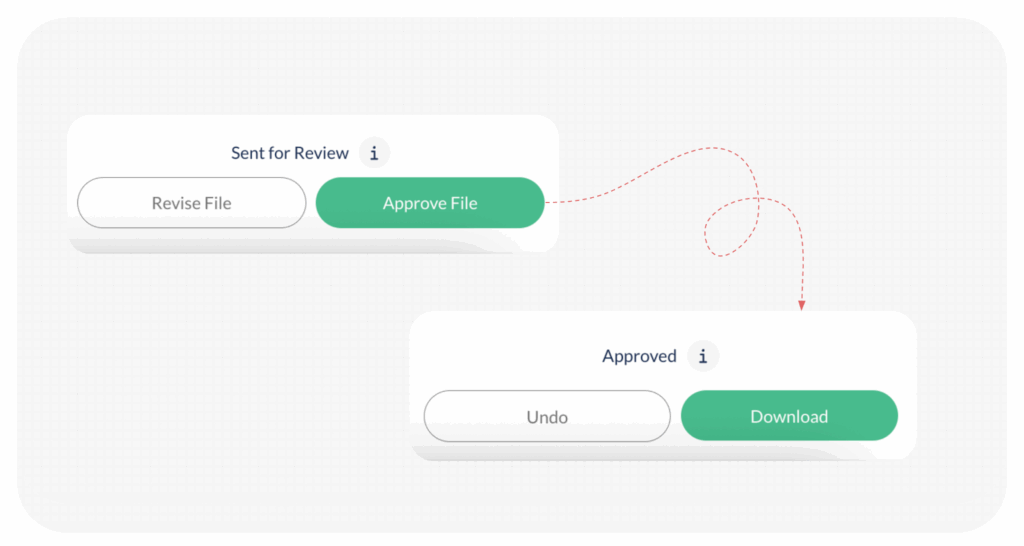
- Assuming that the file has gone through full review, and is ready, complete the action by clicking Approve File.
- The status of the file will change to Approved, and the original output will become available for download.
Approving a Board
Boards are typically used to work on multiple content assets at once. As the approver, you have the flexibility to approve files individually or all at once.
- Each file on a board can go through its own review, revision, and approval cycle. The board’s overall status will remain ‘In Review‘ or ‘In Revision‘ until every file within it has been approved.
- To approve all the content with the status ‘In Review’ in the board, simply click on the Approve Board button. This will turn all such files to ‘Approved’. This action will also result in any files sitting in ‘In Revision’ status to change to ‘Rejected’.

Note: If you choose to approve files one by one inside a board, after all the files have been approved and there are no files in ‘Pending’ or ‘In Revision’ status, the board automatically acquires the Approved status.
Also Read:
How do I add feedback on a File?
How do I send board and files for review?
Last modified: November 12, 2025
