
Yes, you can easily download both files and entire boards from ButtonShift. The download option becomes available once the content has been approved, ensuring you always have the final, original output.
Downloading a File
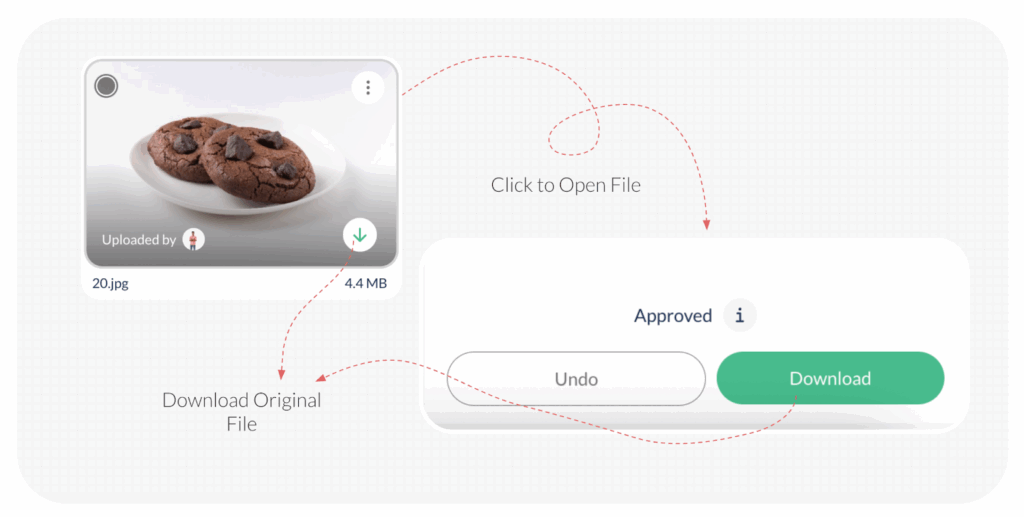
Once a file has been approved, its status changes to Approved, and the download option becomes available. To download it, simply:
- Open the approved file in your workspace, you will see a download icon in the bottom right corner of the file tile.
- Click the Download icon to download the original file
- Alternatively, you can open the approved file and click the Download button on the bottom-right corner to download the original file.
Note: To download multiple files you can select them one by one, and click the Download button at the bottom of the page.
Downloading a Board
You can download an entire board with all its contents at once. This option becomes available only after the board has been approved.
- Navigate to the board you wish to download.
- Click open the approved board
- Click on the Download Board button.
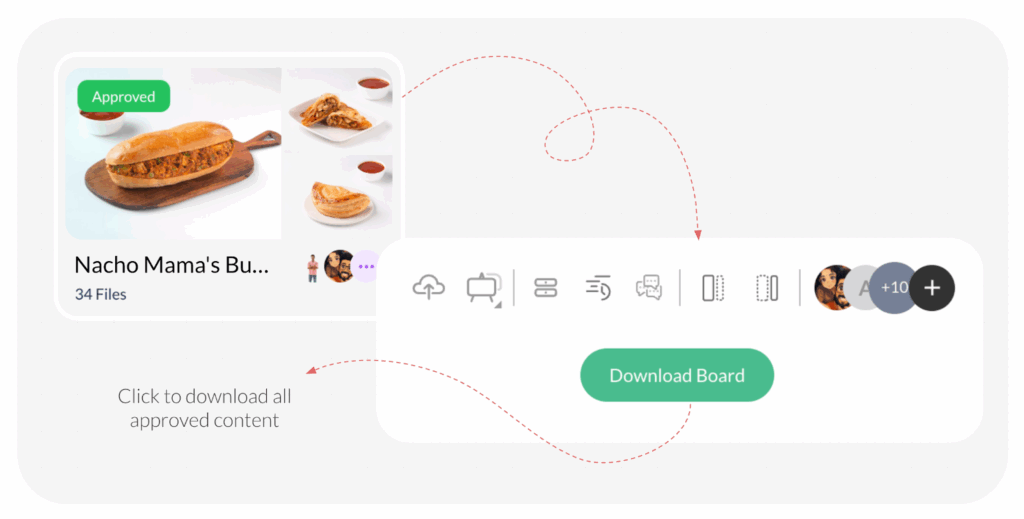
The entire collection of approved files will be downloaded to your computer as zip files in batches of 1.5 GB each.
It is important to note that the original file you download need not necessarily be a high-resolution version, as it entirely depends on what was uploaded by the Creator.
Last modified: October 13, 2025
