
You can easily free up valuable storage space by removing unnecessary content directly from your board, such as old versions of files or items that have been rejected or discarded from the workflow.
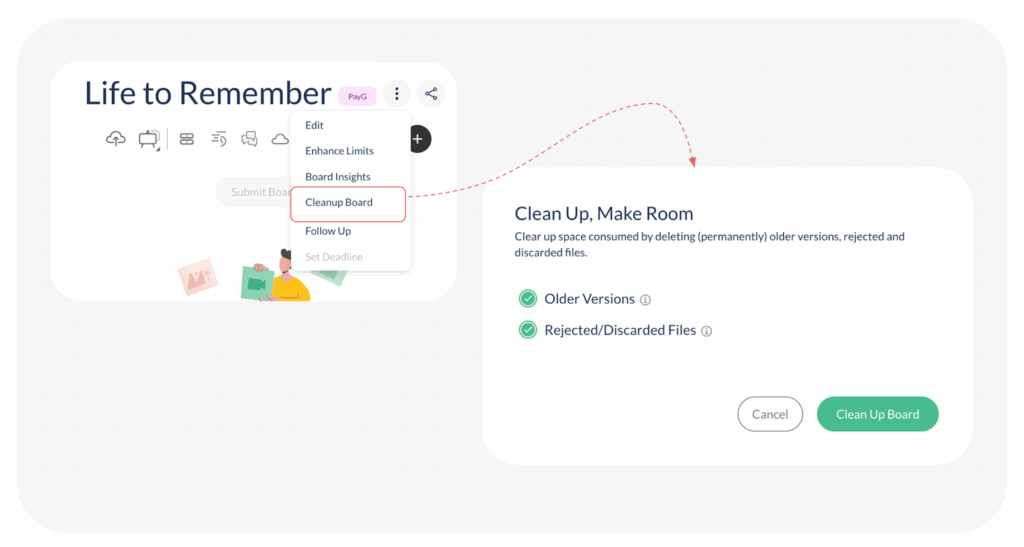
Step-by-Step Guide to Cleaning Up a Board
Follow these steps to access the cleanup tool and remove unwanted content:
- Open the Board: Open the desired board from your workspace.
- Access Options: Click on the 3 vertical dots located next to the Board name.
- Select Clean-up: From the dropdown menu, select ‘Cleanup Board’.
- Review Clean-up Options: A pop-up window will open, presenting options for what can be deleted to free up space. You will see two options automatically selected:
- Older Versions
- Rejected/Discarded files
- Finalize Selection: Review the options and deselect any if you wish to keep that specific content.
- Confirm Clean-up: Click on Cleanup Board to delete the selected content and reclaim the storage space.
Visited 66 times, 1 visit(s) today
Was this article helpful?
YesNo
Last modified: December 17, 2025
