
Yes, you can easily create a dedicated group chat directly for any Worklist. This feature helps consolidate communication and keeps all discussions related to your tasks within the Worklist centralized.
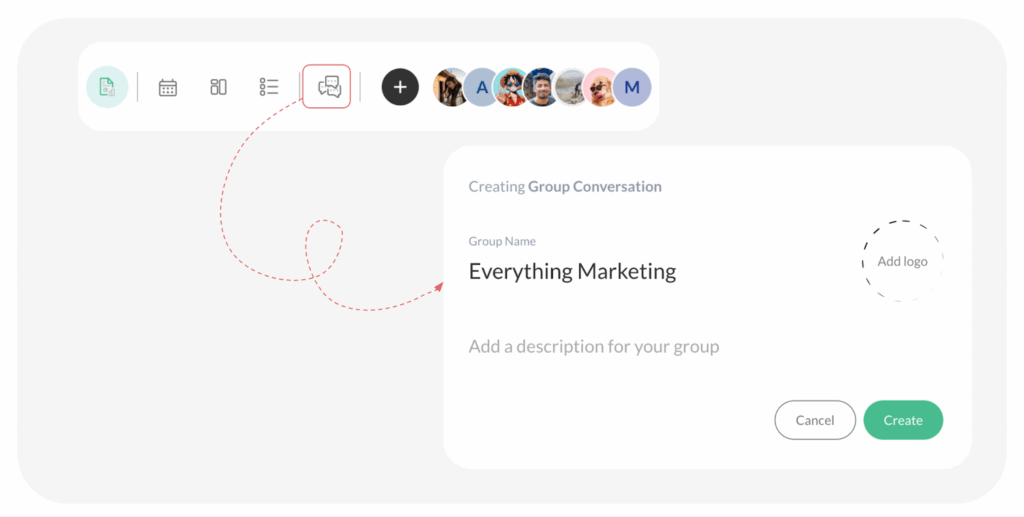
Steps to Set Up a Group Chat
Follow these steps from within your Worklist to set up a new group chat:
- Click the Group Chat Icon: From within the relevant Worklist, simply click on the Group Chat icon.
- Review Default Details: A new chat creation window will appear. A default name for the group chat should automatically populate, usually based on the name of the Worklist you are in.
- Modify Name and Logo (Optional): If needed, you can modify the group name and add a logo to better suit your team’s preferences.
- Add a Description (Optional): You may also choose to provide a brief description for the group, giving members context about the chat’s purpose.
- Finalize Creation: Once you’re satisfied with the settings, click Create.
The new group chat will be instantly created and associated with your Worklist, allowing all members of the Worklist to begin communicating instantly.
Visited 43 times, 1 visit(s) today
Was this article helpful?
YesNo
Last modified: October 13, 2025
