
You can easily revert to any older version of a file and set it as the new active working version. This action can be performed by both the Creator and the Approver, and it is useful for rolling back mistakes or restoring a preferred earlier iteration.
Steps to set a previous version as current.
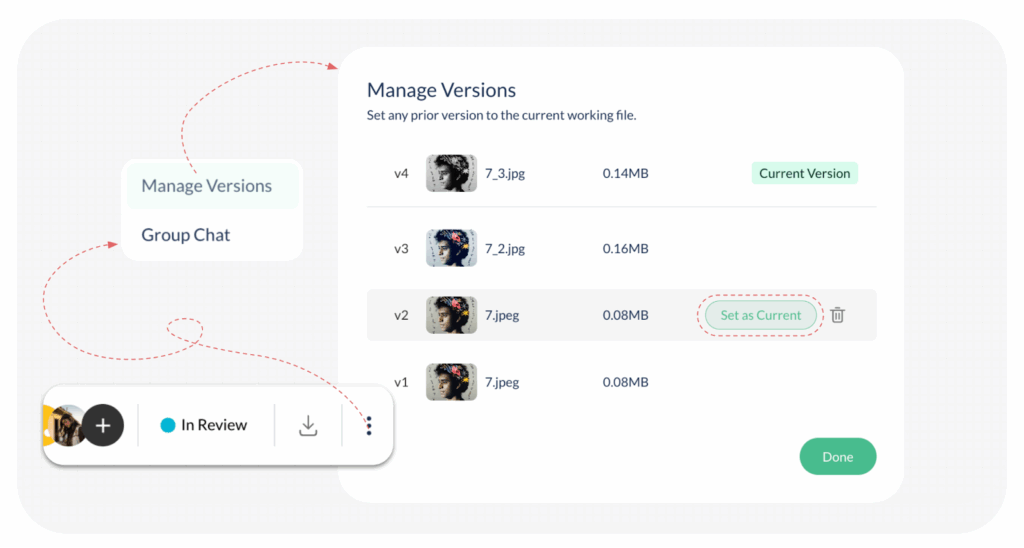
Follow these steps to set a previous version as the current one, assuming you have multiple versions (v1, v2, v3, etc.) already uploaded:
- Click to open the file that you wish to modify.
- Click on the 3 vertical dots located above the file viewer (image, video, PDF, etc.).
- Choose ‘Manage Versions‘ from the dropdown – The version history panel will appear, listing all uploaded versions. The most recent version (e.g., v3) will be labelled ‘Current Version‘ appearing on top.
- Locate the previous version you wish to restore (e.g., v2).
- When you hover your cursor over that older version, the ‘Set as Current‘ option will display. Click on this option.
- A pop-up prompt will ask, ‘Are you sure?‘. Click Yes to confirm the change.
What Happens Next?
The older version you selected instantly replaces the previous active version and becomes the new ‘Current Version‘ in the workspace. The file’s status remains unchanged, allowing the team to continue the workflow (review, revision, or approval) using the restored content.
Visited 38 times, 1 visit(s) today
Was this article helpful?
YesNo
Last modified: January 12, 2026
